3.1 KiB
3.1 KiB
Brainy theme
Simple colorful terminal prompt theme (inspired by a number of themes). Supported on all operating systems In constant maintenance and improvement
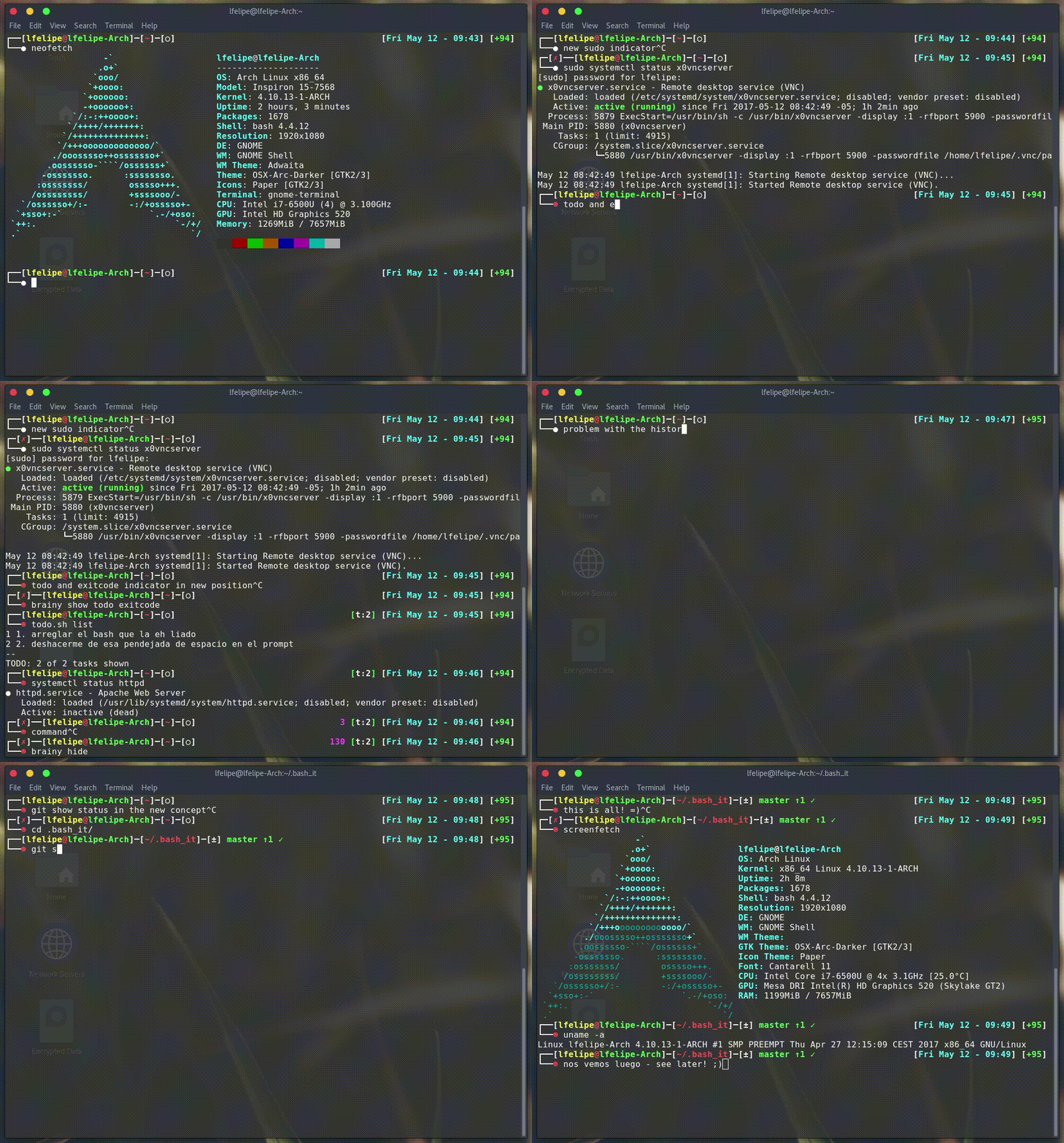
Install Theme
Manually
You can install the theme manually by following these steps:
Edit your modified config ~/.bashrc file in order to customize Bash-it, set BASH_IT_THEME to the theme name brainy.
Examples:
# Use the "brainy" theme
export BASH_IT_THEME="brainy"

### Automatically via terminal

You can install the theme automatically using the `sed` command from your terminal.

Examples:

```bash
# Set the "brainy" theme replacing the theme you are using of bash-it
sed -i 's/'"$BASH_IT_THEME"'/brainy/g' ~/.bashrc

## Features

### Prompt Segments

- Username & Hostname
- Current Directory
- SCM Information
- Battery Charge
- Clock
- [Todo.txt](https://github.com/ginatrapani/todo.txt-cli) status
- Ruby Environment
- Python Environment
- Exit Code

### Others

- Indicator for cached `sudo` credential
- Indicator for abort (ctrl + C) the current task and regain user control
- `brainy` command for showing/hiding various prompt segments on-the-fly

## Configuration

Various prompt segments can be shown/hidden or modified according to your choice. There are two ways for doing that:

1. On-the-fly using `brainy` command
2. Theme Environment Variables

### On-the-fly using `brainy` command

This theme provides a command for showing/hiding prompt segments.

`brainy show <segment>`

`brainy hide <segment>`

Tab-completion for this command is enabled by default.

Configuration specified by this command will only be applied to current and subsequent child shells.

### Theme Environment Variables

This is used for permanent settings that apply to all terminal sessions. You have to define the value of specific theme variables in your `bashrc` (or equivalent) file.

The name of the variables are listed below along with their default values.

#### User Information

Indicator for cached `sudo` credential (see `sudo` manpage for more information):

`THEME_SHOW_SUDO=true`

#### SCM Information

Information about SCM repository status:

`THEME_SHOW_SCM=true`

#### Ruby Environment

Ruby environment version information:

`THEME_SHOW_RUBY=false`

#### Python Environment

Python environment version information:

`THEME_SHOW_PYTHON=false`

#### ToDo.txt status

[Todo.txt](https://github.com/ginatrapani/todo.txt-cli) status:

`THEME_SHOW_TODO=false`

#### Clock

`THEME_SHOW_CLOCK=true`

`THEME_CLOCK_COLOR=$bold_cyan`

Format of the clock (see `date` manpage for more information):

`THEME_CLOCK_FORMAT="%H:%M:%S"`

#### Battery Charge

Battery charge percentage:

`THEME_SHOW_BATTERY=false`

#### Exit Code

Exit code of the last command:

`THEME_SHOW_EXITCODE=true`

## Prompt Segments Order

Currently available prompt segments are:

- battery
- char
- clock
- dir
- exitcode
- python
- ruby
- scm
- todo
- user_info

Three environment variables can be defined to rearrange the segments order. The default values are:

`___BRAINY_TOP_LEFT="user_info dir scm"`

`___BRAINY_TOP_RIGHT="python ruby todo clock battery"`

`___BRAINY_BOTTOM="exitcode char"`